Using Obscura via WireGuard
If you’re on a platform where we don’t yet have a native Obscura app, you can use the WireGuard app to use Obscura.
If you’re on iOS or macOS, we recommend you use the native Obscura app here.
-
On your computer, generate a WireGuard config QR code in your Obscura user portal (more details)
-
On your Android phone, use the WireGuard app to scan the previously generated QR code and add it (more details)
-
Toggle on the WireGuard config and you’re connected to Obscura check connection page (more details)
Step 1: Generating a WireGuard config
Section titled “Step 1: Generating a WireGuard config”-
On your computer, open your Obscura user portal and navigate to the Manage WireGuard configs section
-
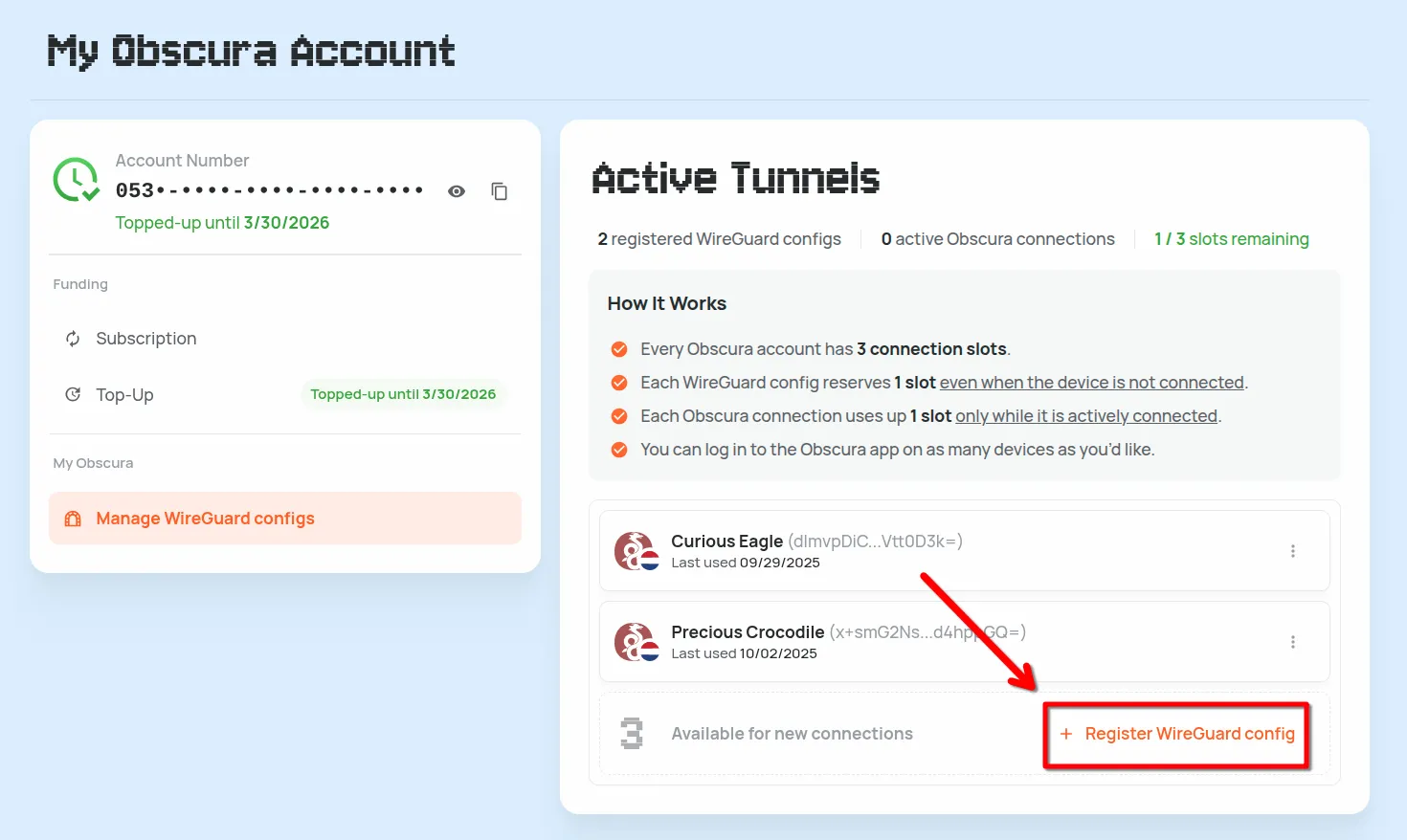
Under Active Tunnels click Register WireGuard config
-
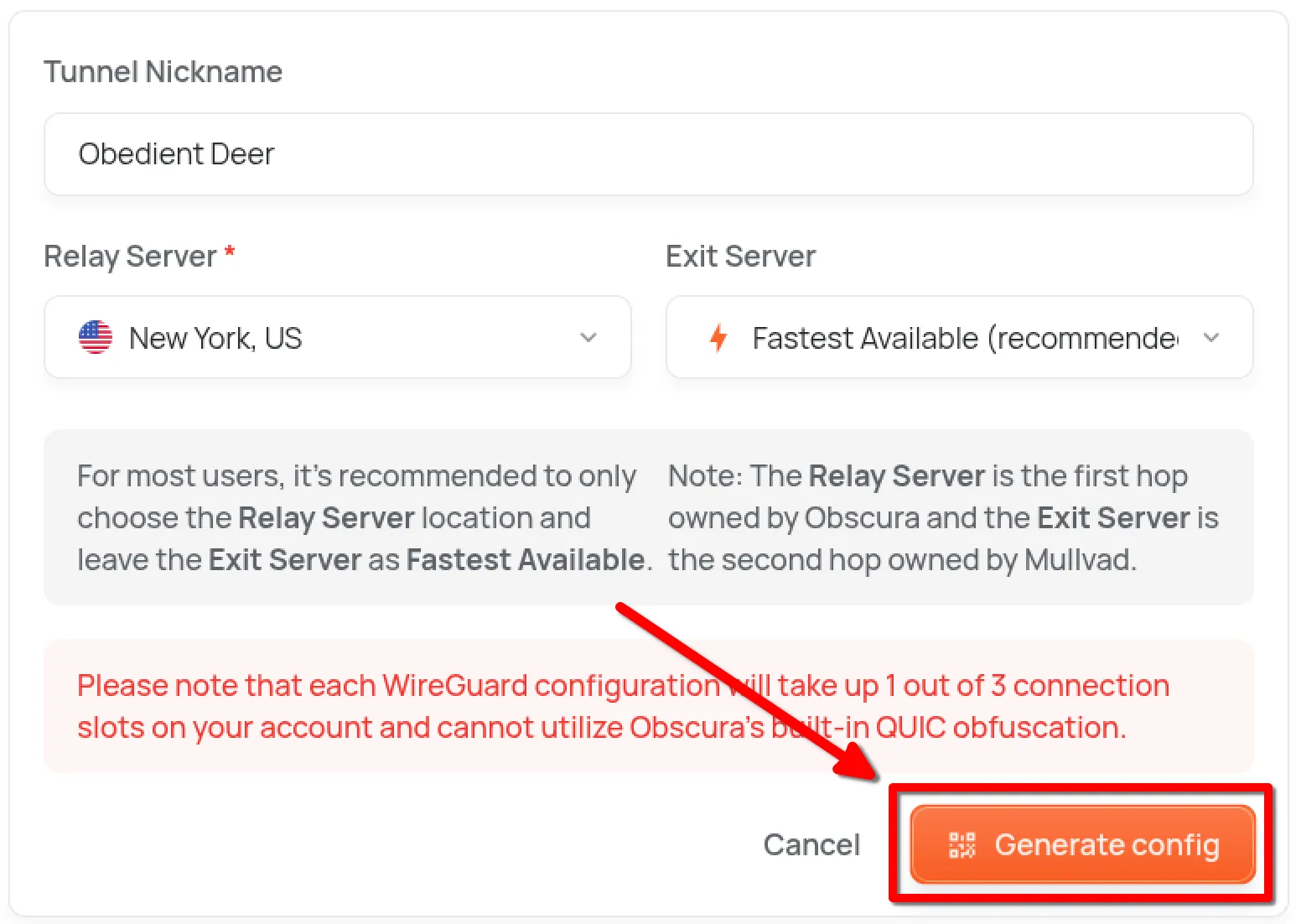
Choose your server location (Relay Server) and optionally an Exit Server then click Generate config
Step 2: Adding the WireGuard config to your phone
Section titled “Step 2: Adding the WireGuard config to your phone”-
Download WireGuard from the Play Store or install the APK directly
-
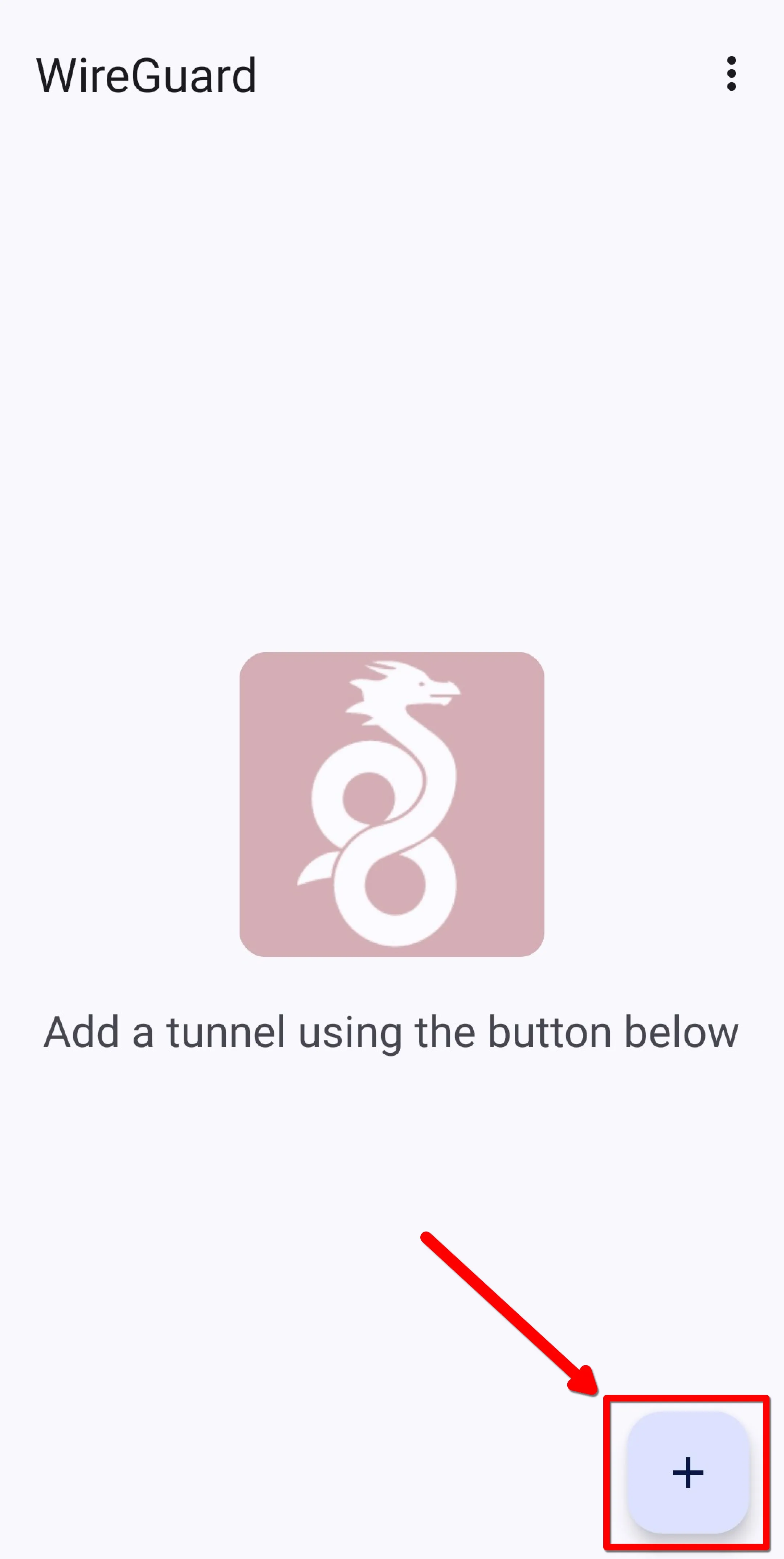
On your Android device, open the WireGuard app and tap the + button in the bottom-right corner
-
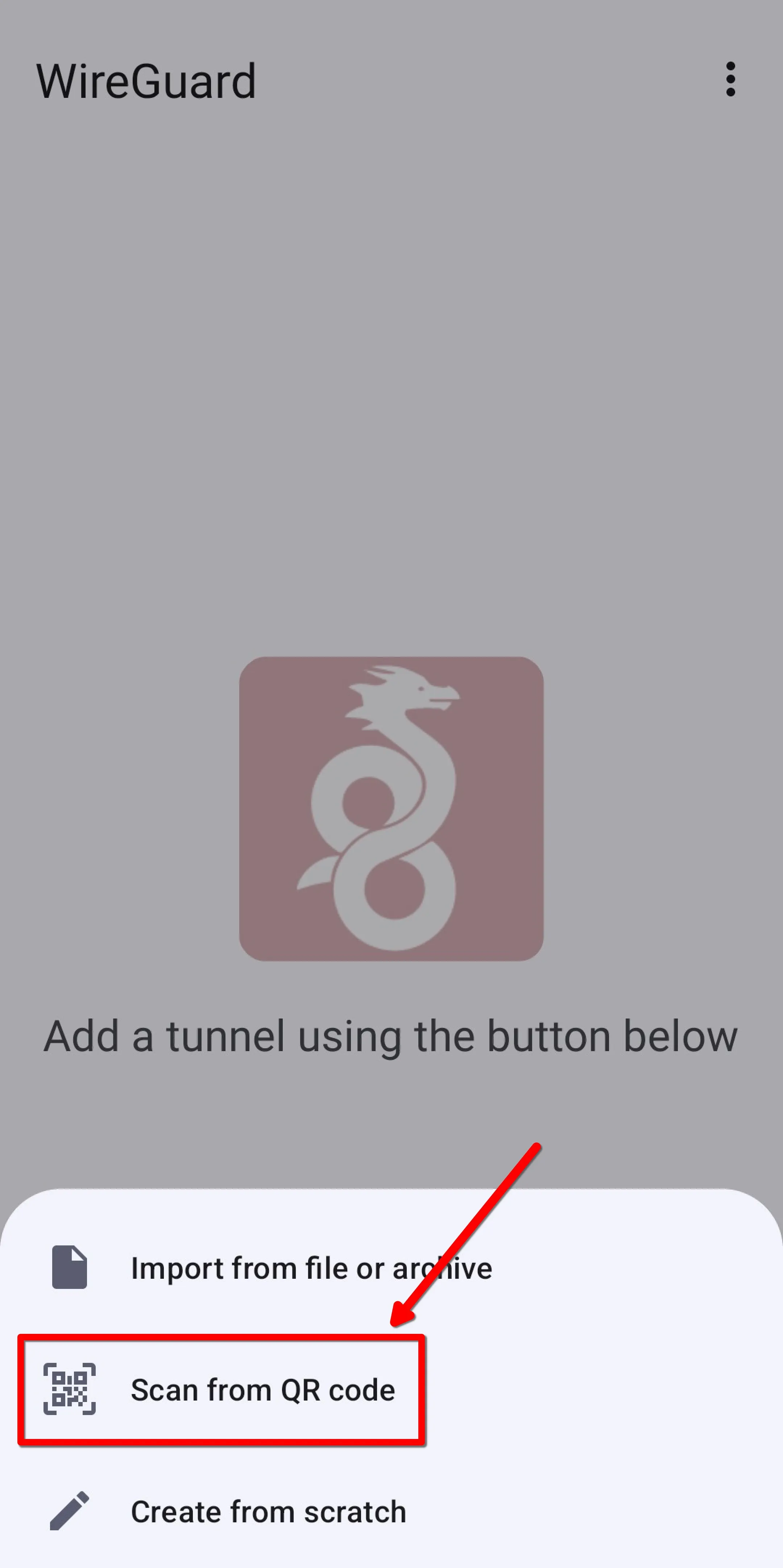
Tap Scan from QR code
-
Scan the QR code you previously generated on your computer
-
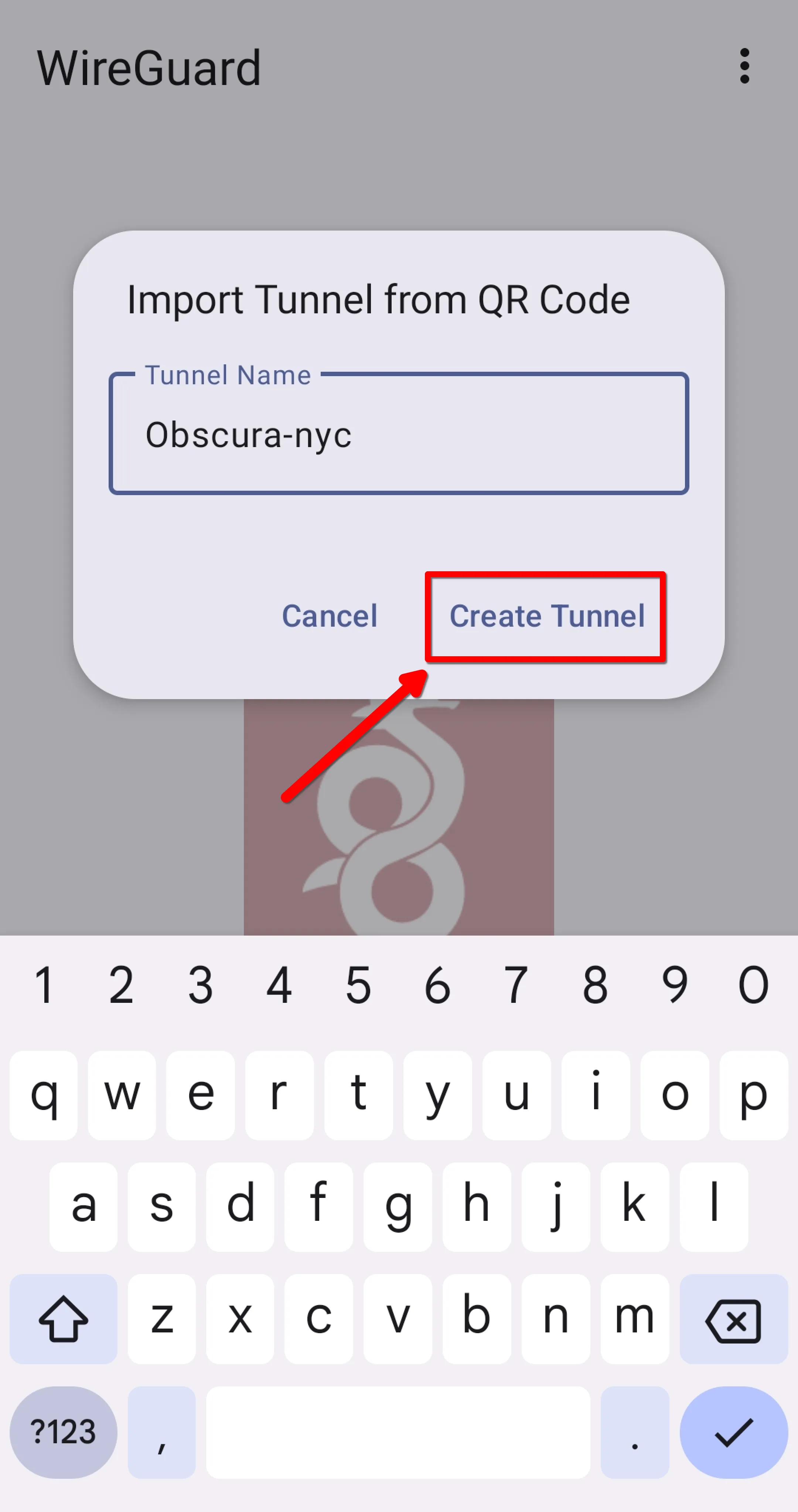
Name your tunnel, then tap Create Tunnel
Step 3: Activating the WireGuard tunnel
Section titled “Step 3: Activating the WireGuard tunnel”-
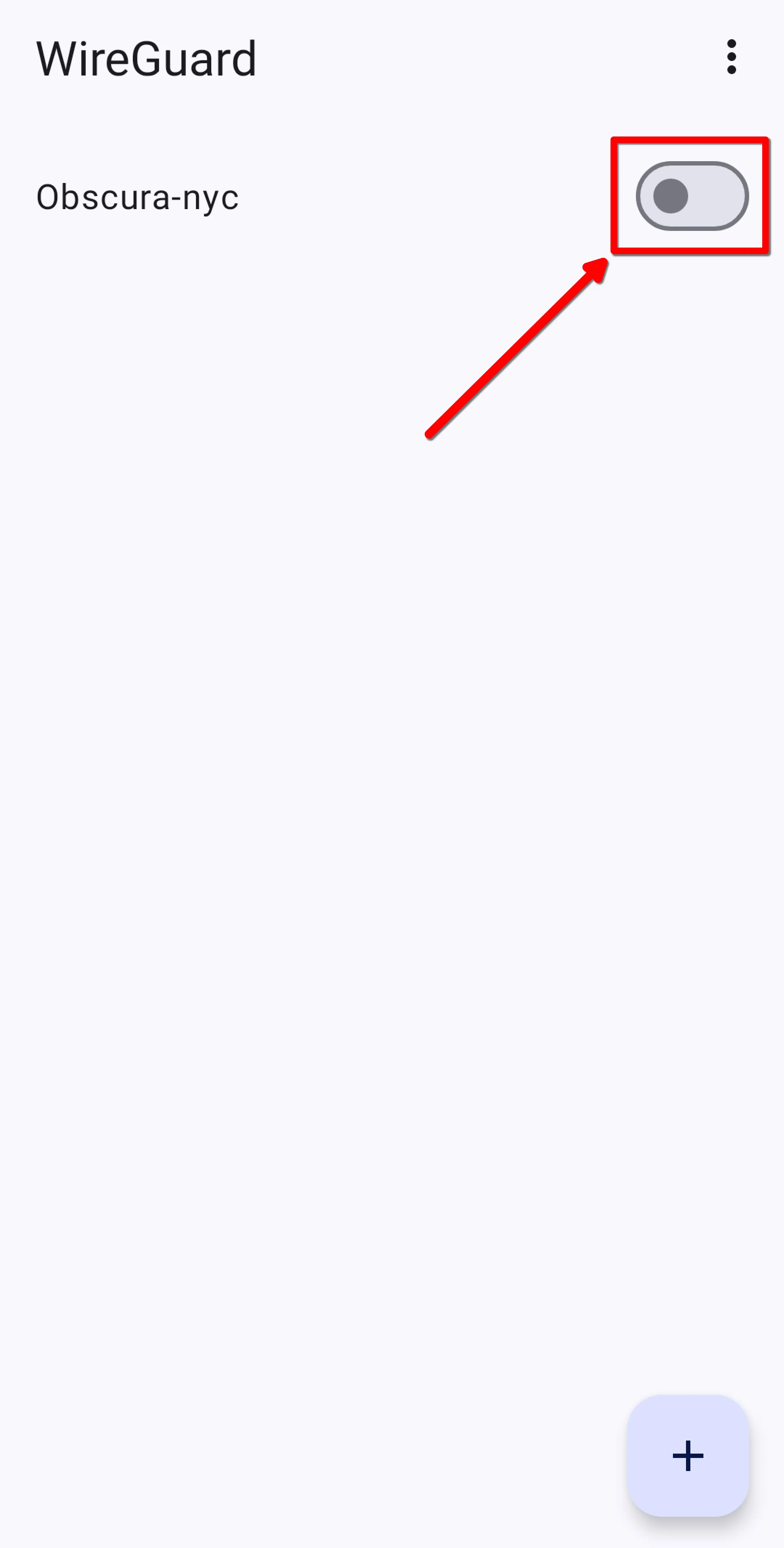
Activate the tunnel
-
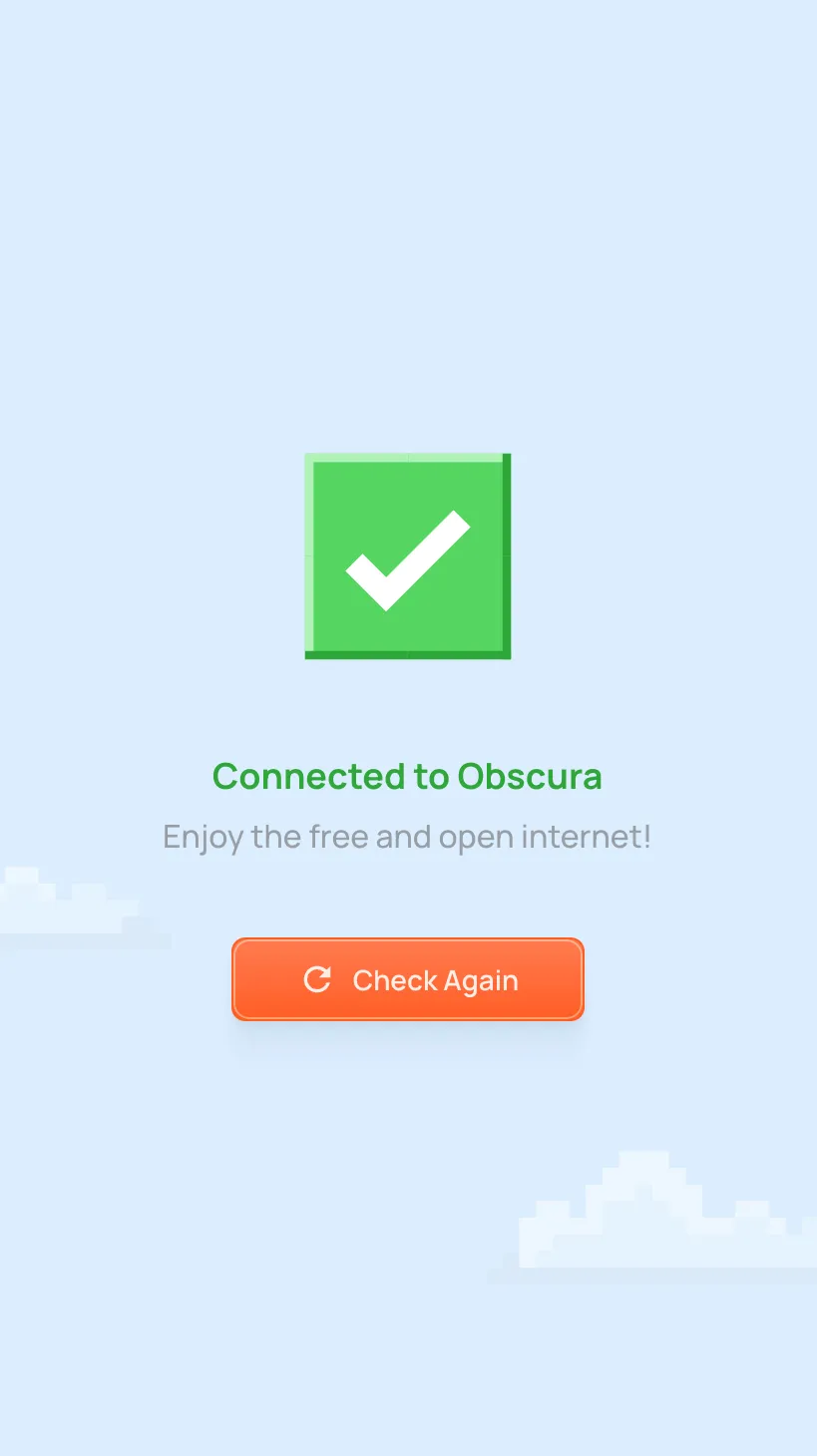
Confirm you’re connected to Obscura check connection page
-
On your phone, generate a WireGuard config file in your Obscura user portal and download it (more details)
-
On your Android phone, use the WireGuard app to import the previously generated config file and add it (more details)
-
Toggle on the WireGuard config and ensure you’re connected to Obscura on our check connection page (more details)
Step 1: Generating a WireGuard config
Section titled “Step 1: Generating a WireGuard config”-
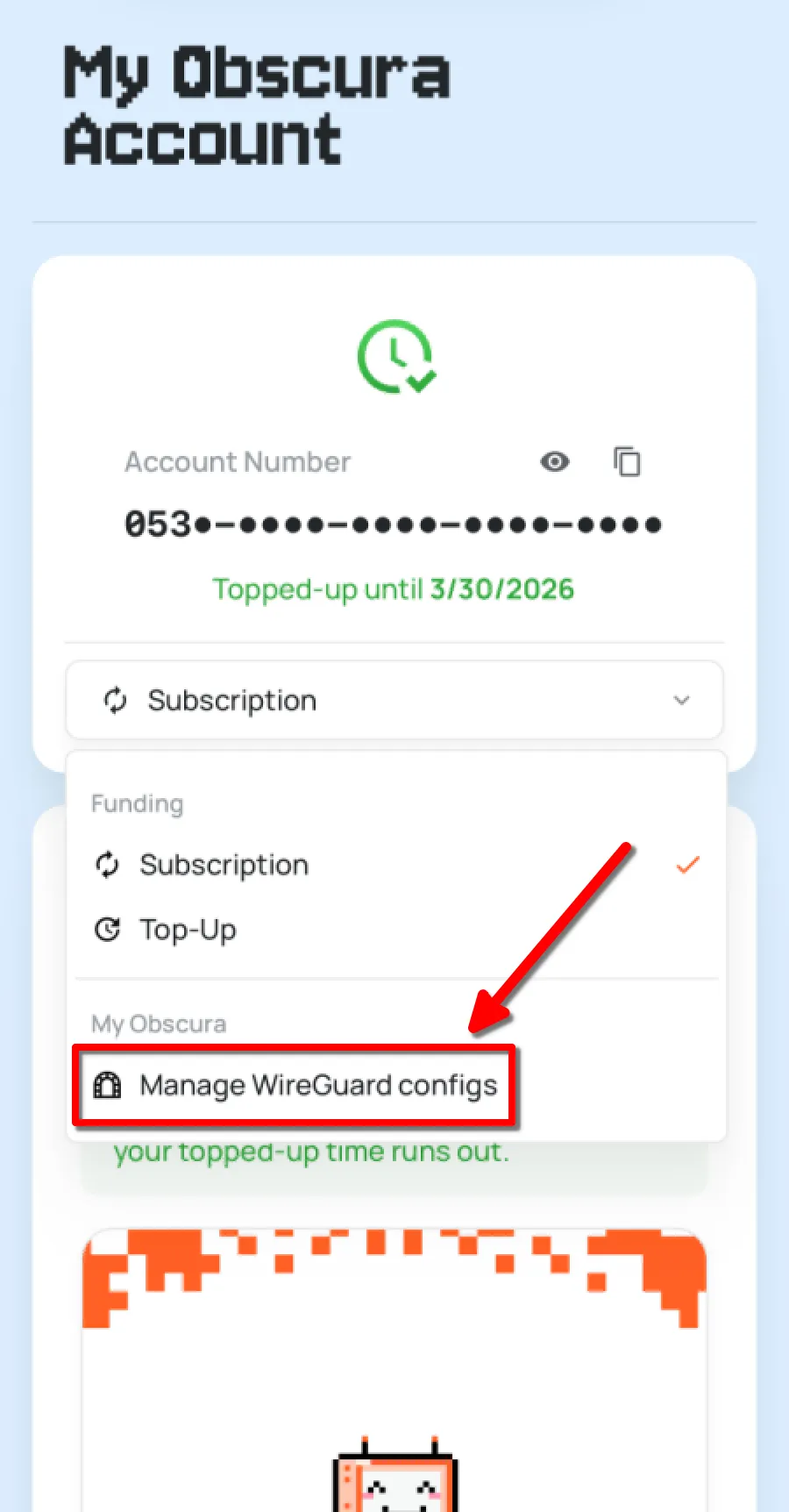
In your Obscura user portal, navigate to the Manage WireGuard configs section
-
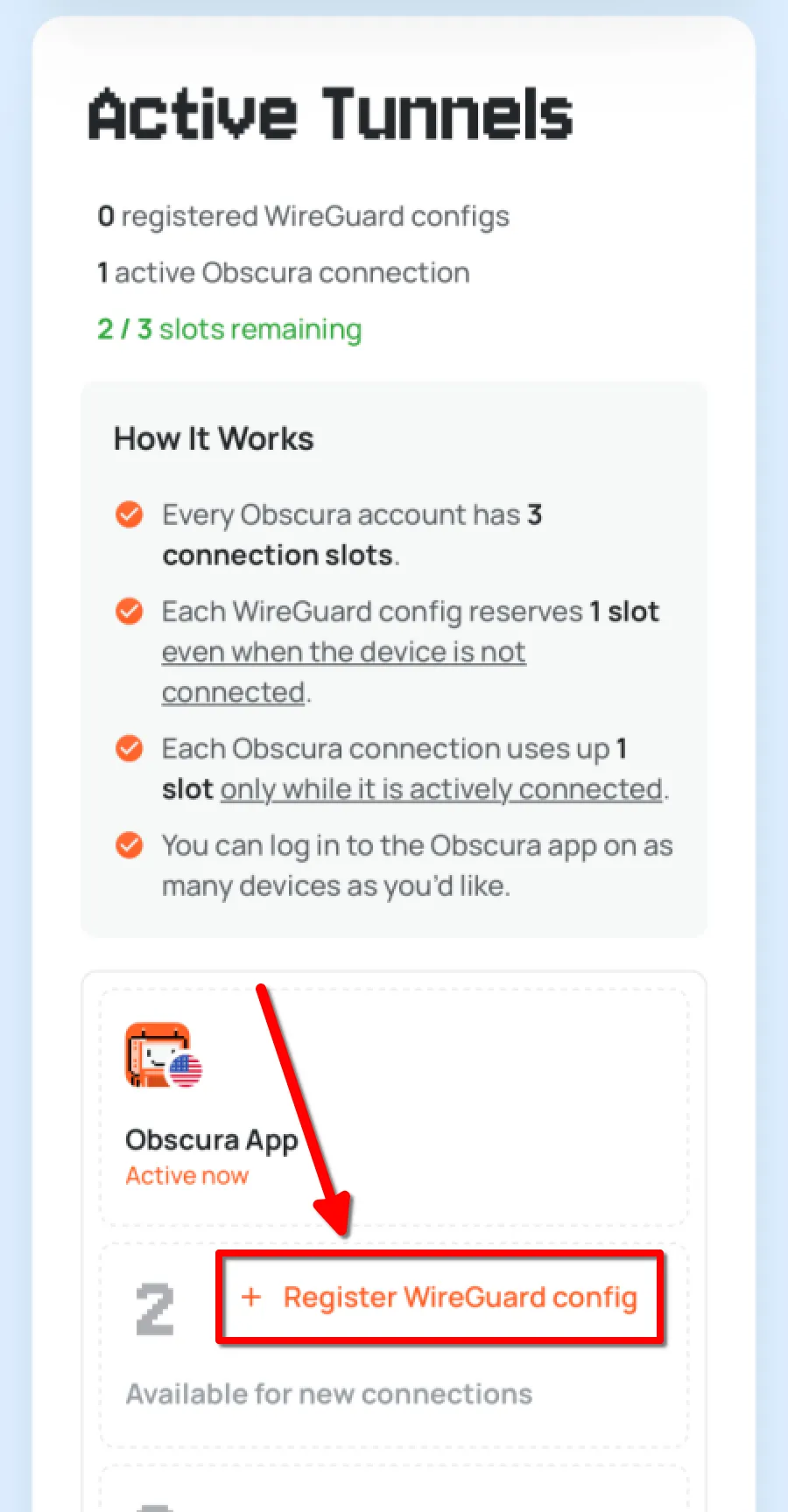
Under Active Tunnels click Register WireGuard config
-
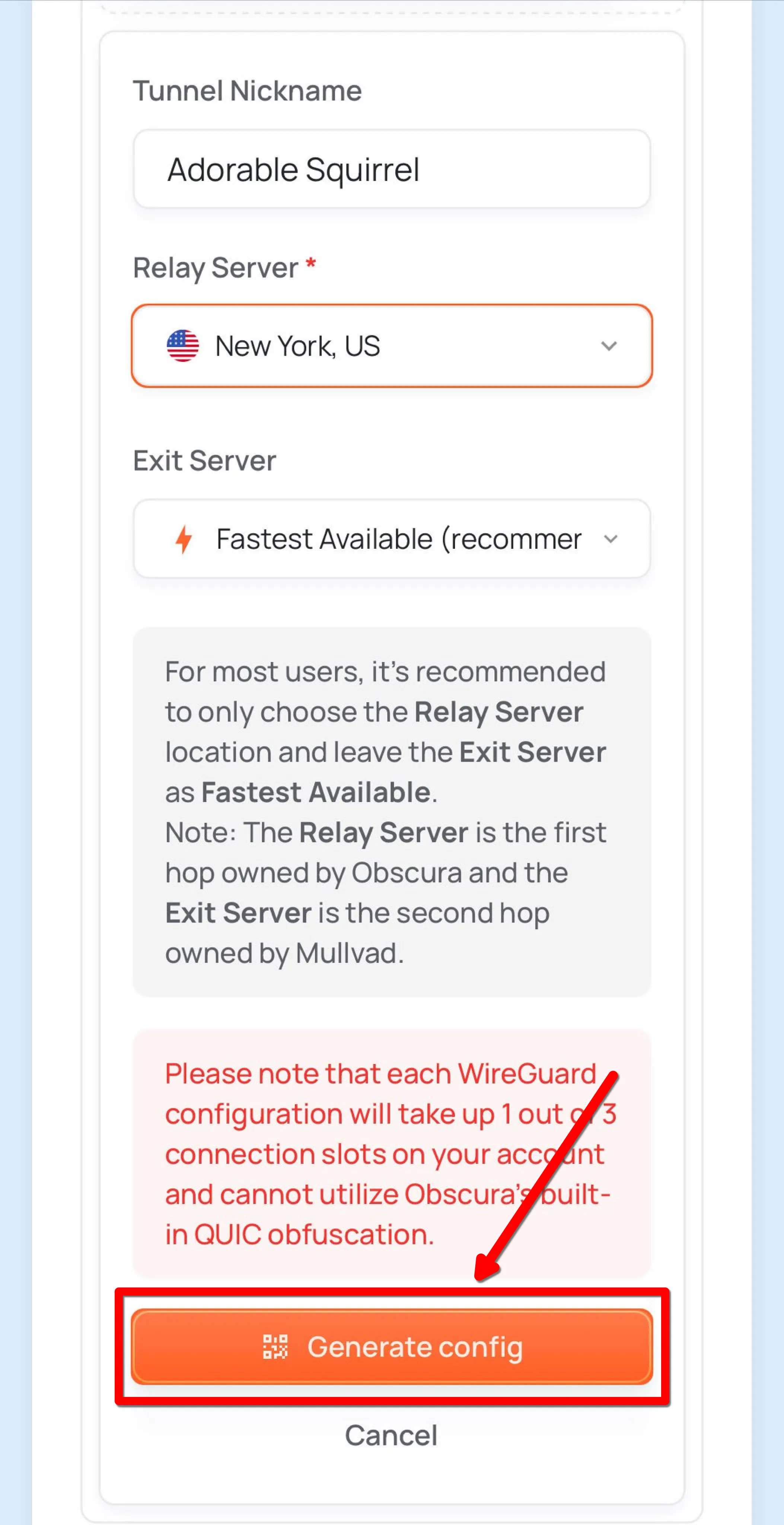
Choose your server location (Relay Server) and optionally Exit Server then click Generate config
-
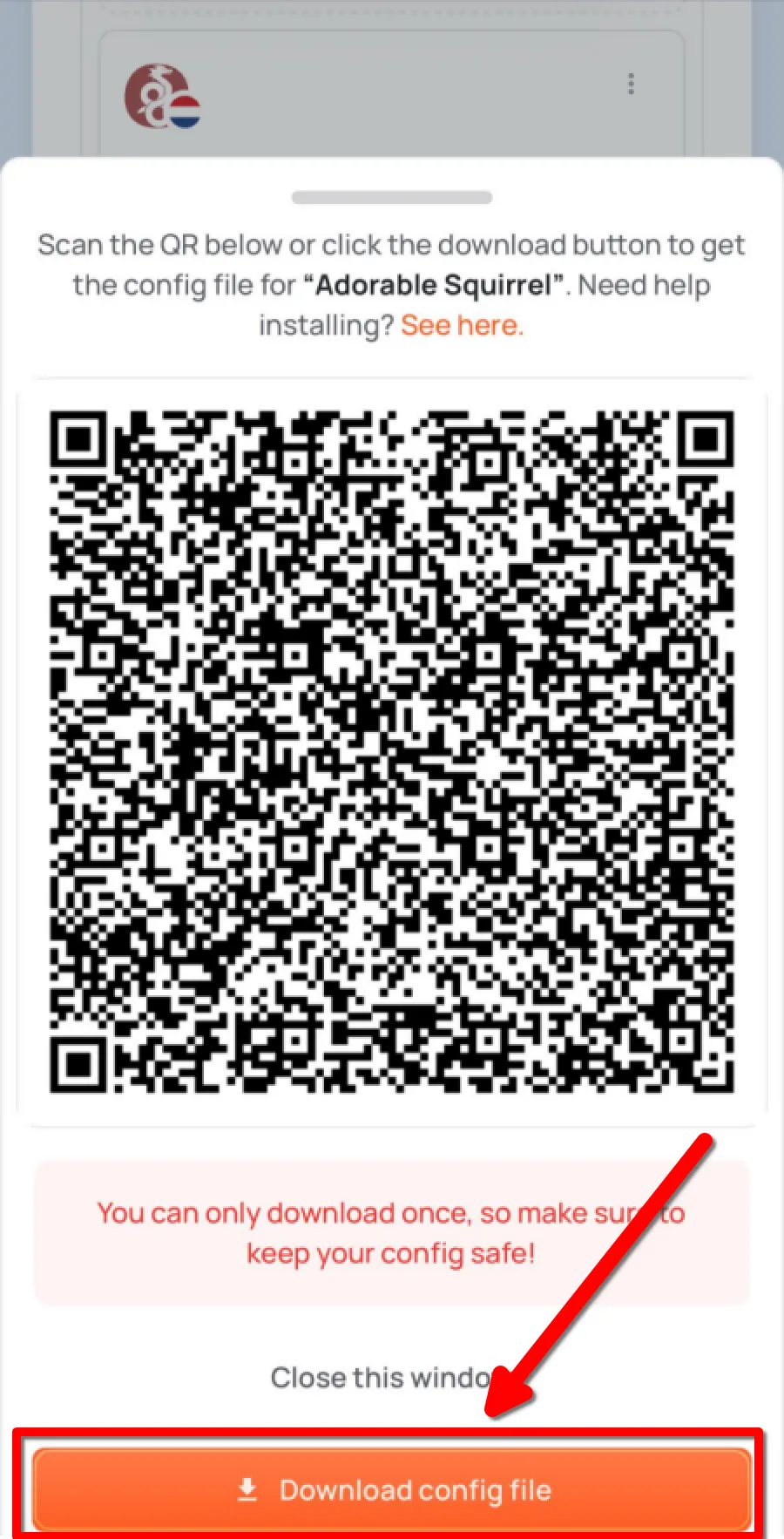
Tap Download config file and save the file to your device
Step 2: Adding the config to the WireGuard app
Section titled “Step 2: Adding the config to the WireGuard app”-
Download WireGuard from the Play Store or install the APK directly
-
Open the WireGuard app and tap the + button in the bottom-right corner
-
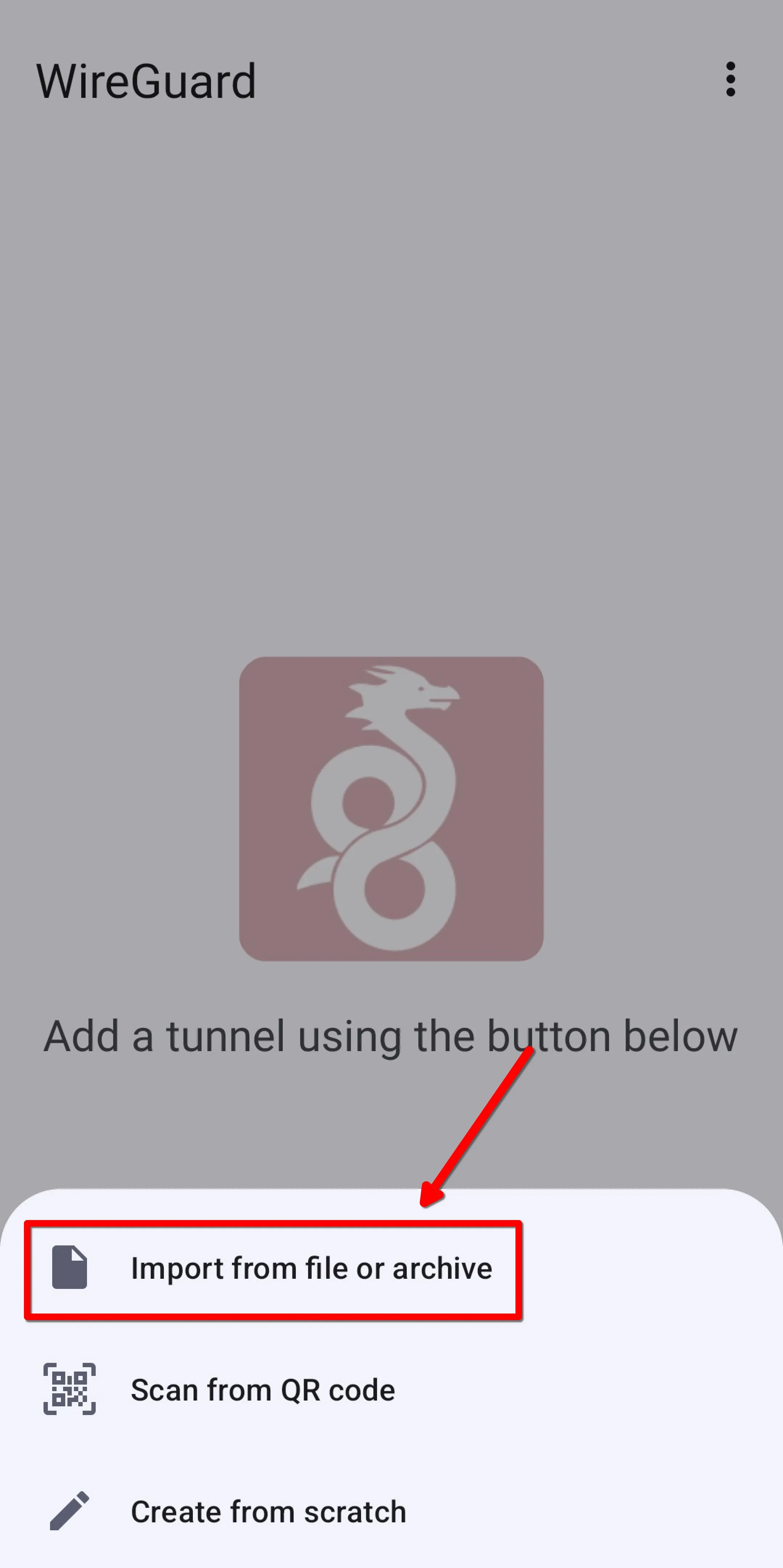
Tap Import from file or archive
-
Select the config file and import it into the WireGuard app
-
Name your tunnel, then tap Create Tunnel
Step 3: Activating the WireGuard config
Section titled “Step 3: Activating the WireGuard config”-
Activate the tunnel
-
Confirm you’re connected to Obscura on our check connection page
-
On your computer, generate a WireGuard config file in your Obscura user portal and download it (more details)
-
On your Windows computer, use the WireGuard app to import the previously generated config file and add it (more details)
-
Toggle on the WireGuard config and ensure you’re connected to Obscura on our check connection page (more details)
Step 1: Generating a WireGuard config
Section titled “Step 1: Generating a WireGuard config”-
In your Obscura user portal, navigate to the Manage WireGuard configs section > click Register new config > choose your location (Relay Server) and optionally Exit Server > click Generate config
-
Click Download config file and save it to your computer
Step 2: Adding the config to the WireGuard app
Section titled “Step 2: Adding the config to the WireGuard app”-
Download the latest WireGuard application from their website (direct download)
-
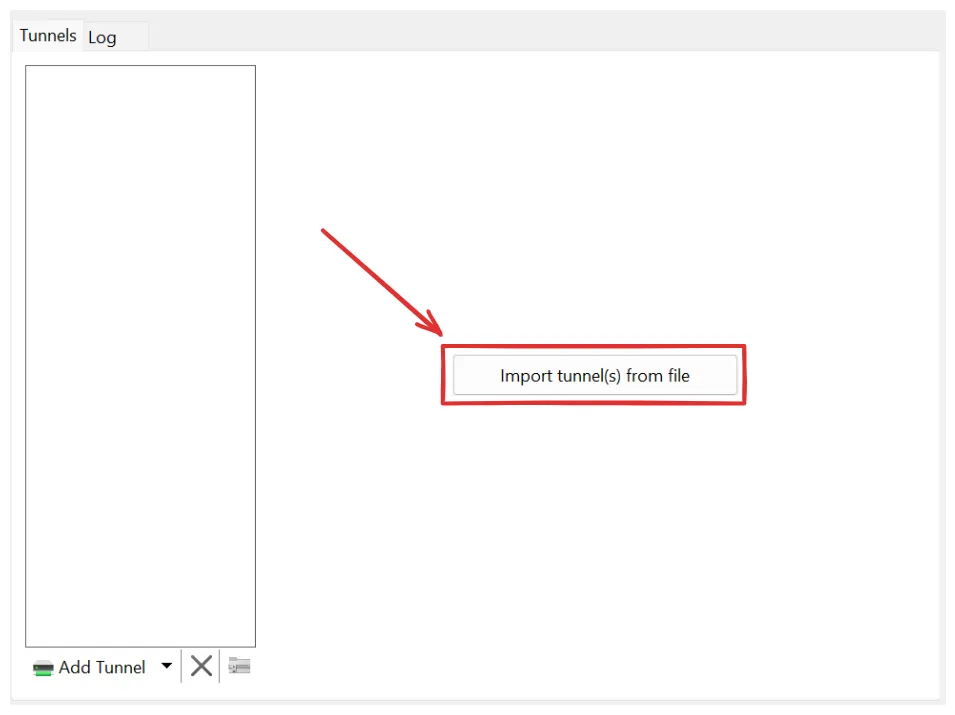
Open the WireGuard application and click on Import tunnel(s) from file in the center of the application, then select your Obscura config file
Step 3: Activating the WireGuard config
Section titled “Step 3: Activating the WireGuard config”-
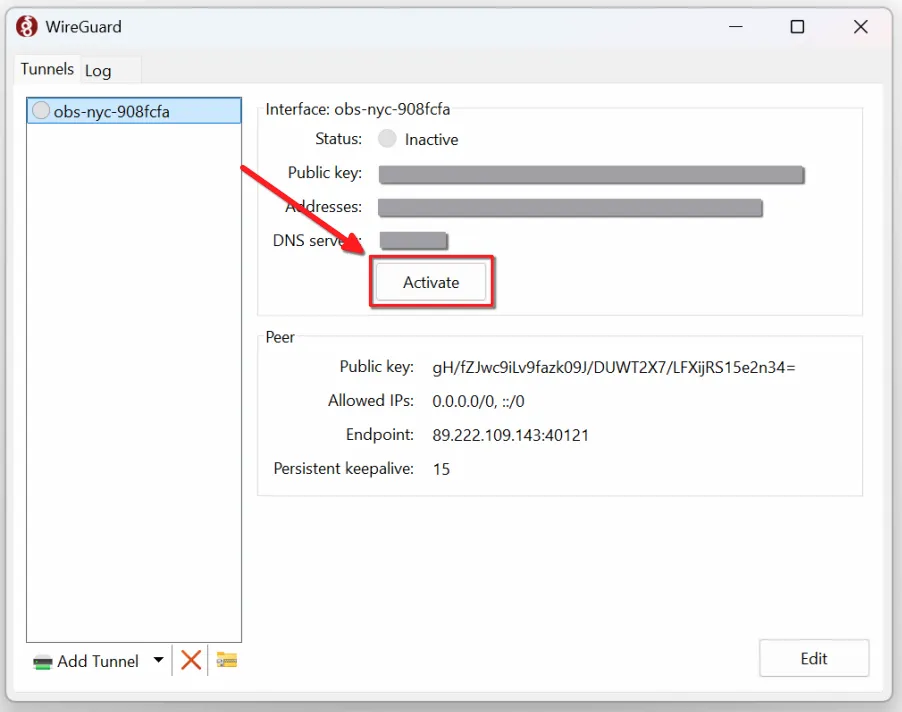
Click Activate
-
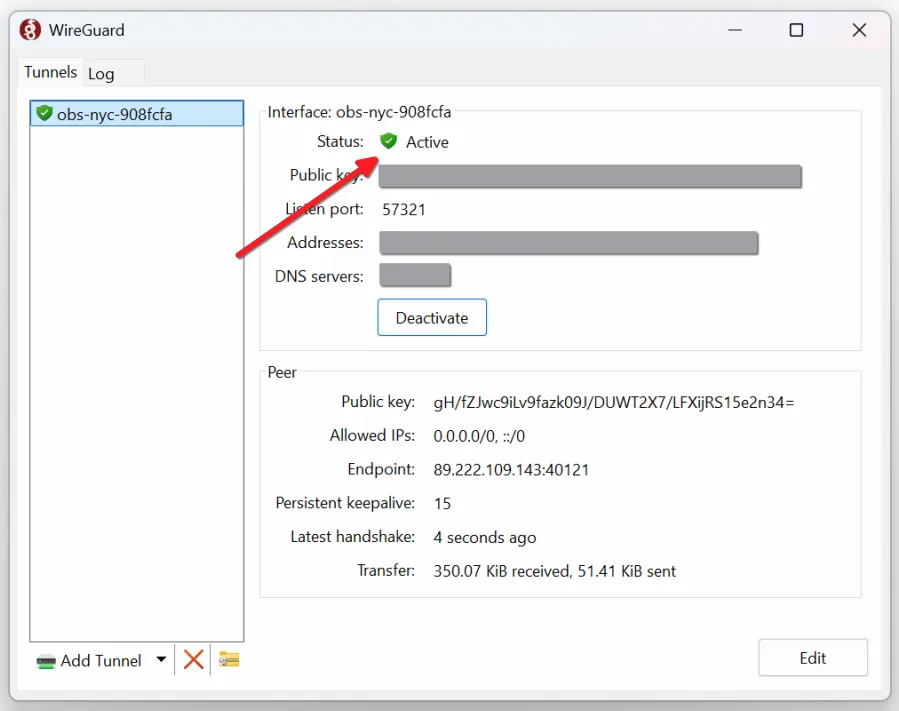
Ensure your WireGuard tunnel is active
-
Confirm your connection status on our check connection page