
Set Network Priority in macOS
On macOS when multiple networks are available, you can choose which one takes priority. The Obscura app follows this priority setting, and uses the highest ranked active network.
Configure Service Order
Section titled “Configure Service Order”-
Open System Settings
-
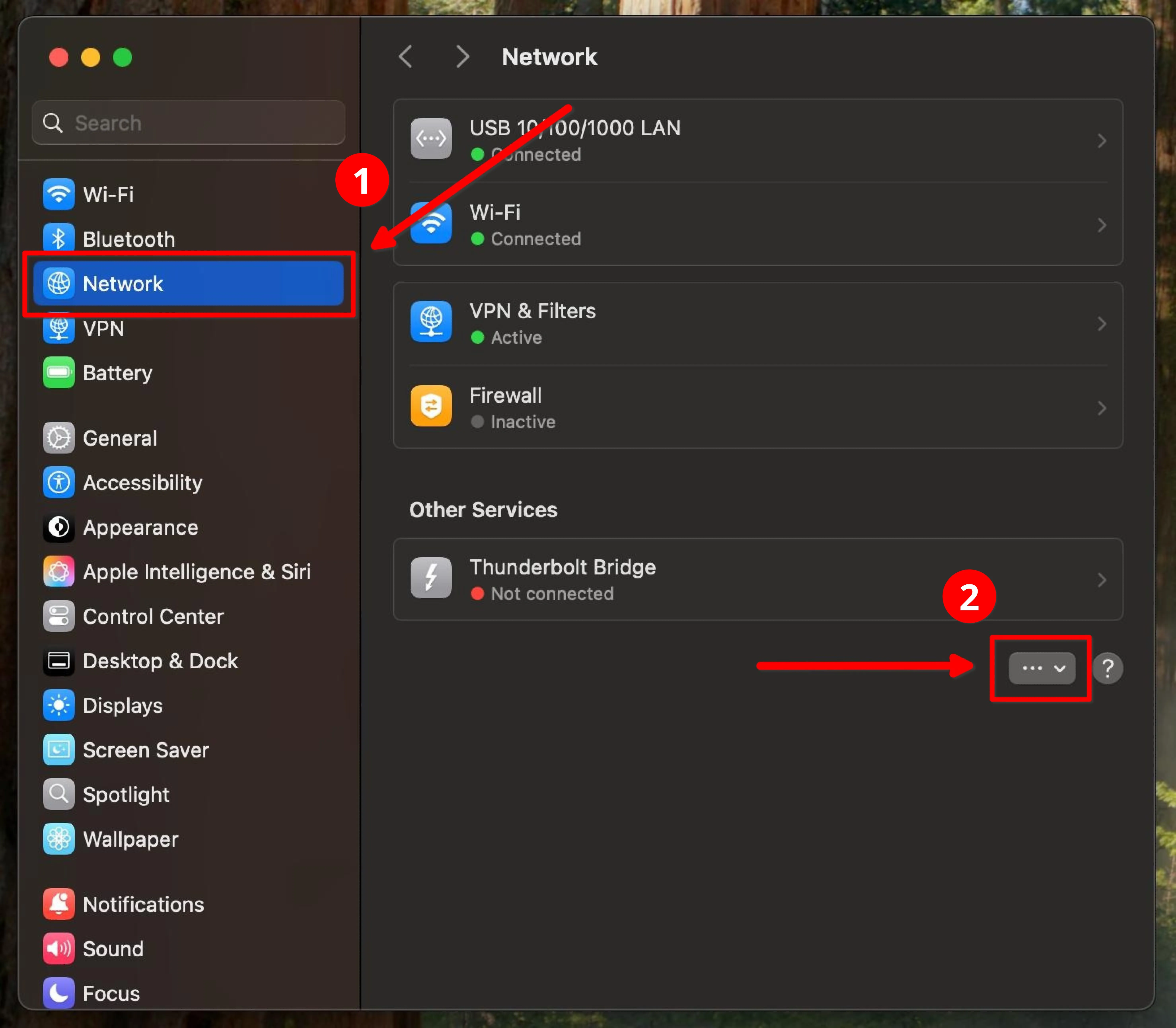
Navigate to Network in the sidebar and click the three-dot menu
-
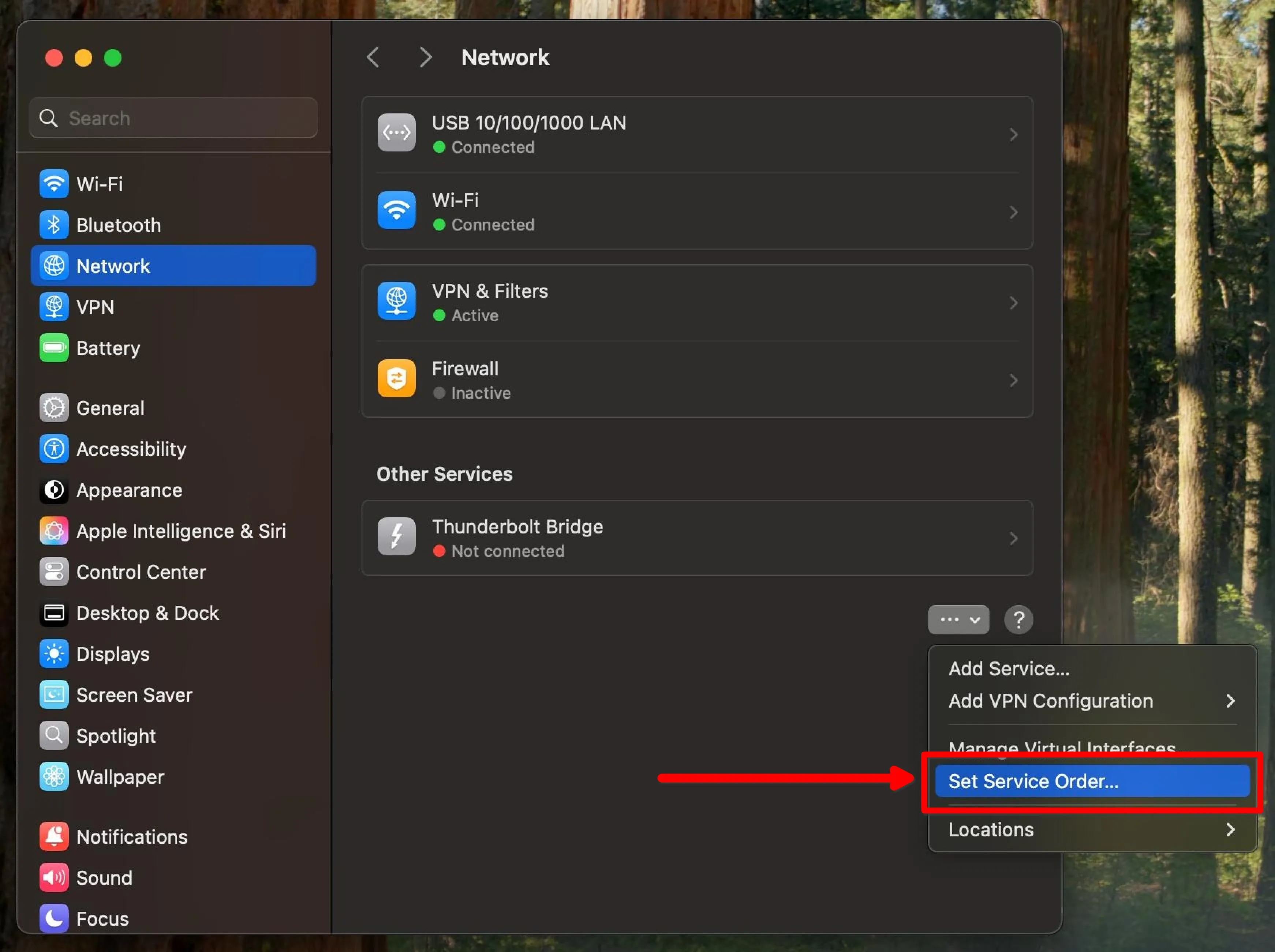
Click Set Service Order from the dropdown menu
-
Drag networks into your preferred order (top = highest priority)
You may want to rank your Ethernet connection above your Wi-Fi connection