Obscura's VPN Kill Switch
What is a Kill Switch?
Section titled “What is a Kill Switch?”A VPN kill switch is a security feature that protects your real IP address from leaking. If the VPN tunnel stops unexpectedly, the kill switch blocks all internet traffic until the VPN tunnel automatically reconnects. This prevents the device from falling back to a connection not protected by the VPN.
Enabling the Kill Switch
Section titled “Enabling the Kill Switch”-
Open the Obscura app
-
Disconnect your VPN connection
-
Navigate to the settings tab in the app
-
Open Experimental and enable On demand kill switch
How it Works
Section titled “How it Works”The kill switch activates an on-demand rule that automatically restarts the VPN if it crashes. While the VPN is restarting, all device traffic is blocked, preventing your location from leaking.
Platform Quirks
Section titled “Platform Quirks”When using multiple VPN apps on iOS, activating a VPN will turn off all other VPNs on the device and override the kill switch.
When this happens, Obscura will send you a notification, allowing you to re-enable your VPN connection.
This is because of an iOS platform limitation where only one VPN can be connected at a time.
If you have the kill switch on, we always recommend you connect and disconnect through the app. If you encounter a bug that makes that impossible, follow these steps.
-
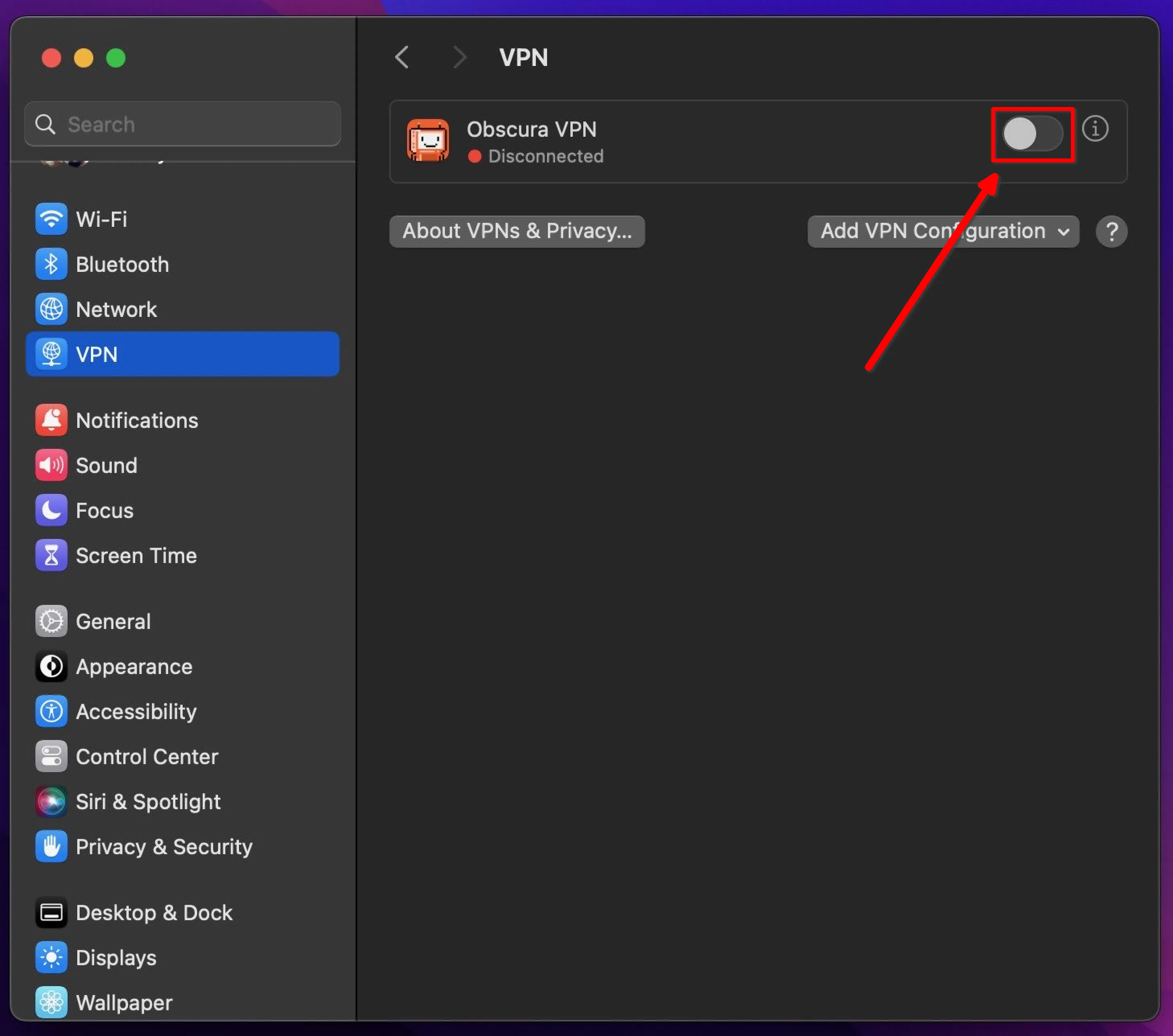
Open System Settings
-
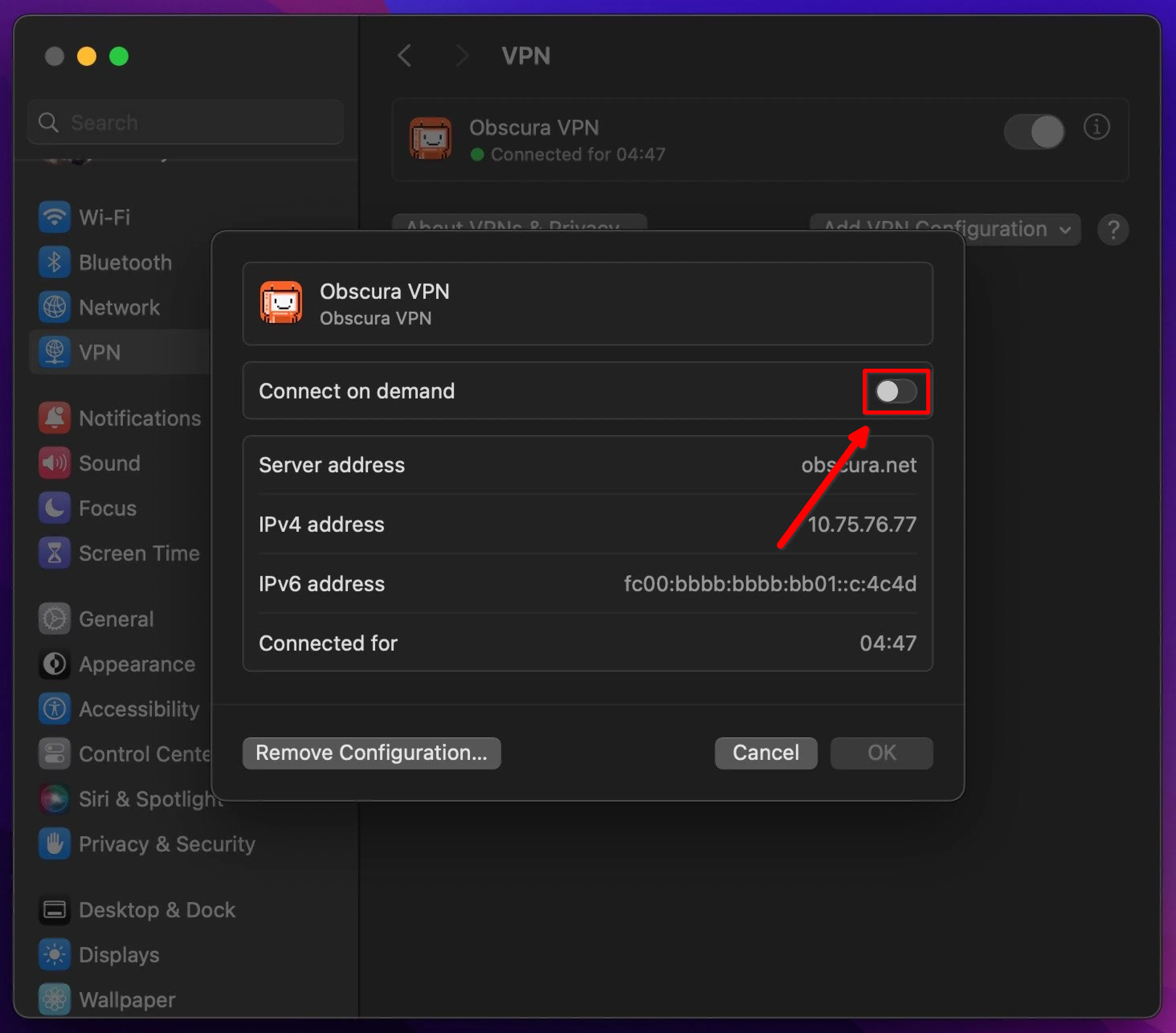
In the sidebar, select VPN & click the (i) button next to Obscura VPN

-
Ensure that Connect on demand is disabled
-
Return to the VPN page and disable the VPN